Social media image sizes in 2026 (Instagram, Facebook, TikTok, YouTube, X, LinkedIn)
Each social network has its own sizes, and when a photo doesn't fit the right ratio, the platform crops it on its own —right where you didn't want. This guide gathers the current sizes for the main networks, with a simple principle: what almost always matters is the aspect ratio (square, vertical, horizontal), and then the pixel size. By the end you'll know what format to leave each image in so it shows in full.
The rule that solves 90%: think in ratios
- 1:1 (square): profile photos and square feed posts.
- 4:5 (vertical): the format that takes up the most feed space on Instagram without being cropped.
- 9:16 (tall vertical): stories, Reels, TikTok, Shorts.
- 16:9 (horizontal): YouTube thumbnails, wide covers.
Profile photos (avatar)
Almost every network uses a square avatar and shows it cropped in a circle. That's why it pays to leave air around the head. Safe size: 800×800 px for Instagram, Facebook, X and TikTok; LinkedIn wants at least 400×400. A single large square file covers them all.
- Profile: 1:1 (shown in a circle). 320×320 minimum; 800×800 is plenty.
- Square post: 1:1, typically 1080×1080 px.
- Vertical post: 4:5, 1080×1350 px (the one that takes up the most screen).
- Story / Reel: 9:16, 1080×1920 px.
- Profile: 1:1 (shown in a circle). 720×720 or more.
- Cover: horizontal, around 1640×624 px on desktop (cropped differently on mobile).
- Post: 1200×630 px is a versatile size that also works for links.
TikTok
- Profile: square, shown in a circle. 200×200 minimum; upload larger.
- Vertical video / photo: 9:16, 1080×1920 px.
YouTube
- Channel photo: square, 800×800 px recommended (shown in a circle).
- Thumbnail: 16:9, 1280×720 px. It's where the click is won: a clean background and a cut-out subject help it stand out.
X (Twitter) and LinkedIn
- X — profile: 1:1, 400×400 px or more (circle).
- X — post image: 16:9 shows in full in the timeline.
- LinkedIn — profile: 1:1, minimum 400×400 px (circle).
- LinkedIn — cover: horizontal, around 1584×396 px.
How to get the photo to its size, step by step
- Identify from the lists above the ratio and size the network and post type ask for.
- Open the image in PhotoCut Studio.
- If you want to clean up or change the background, use the AI Cutout and choose a color or image (very useful for YouTube thumbnails and avatars).
- Use the scale/framing control to fit the subject within the right ratio.
- Export as JPG (photos) or PNG (graphics, text or transparency).
We tested it: resize to the exact size
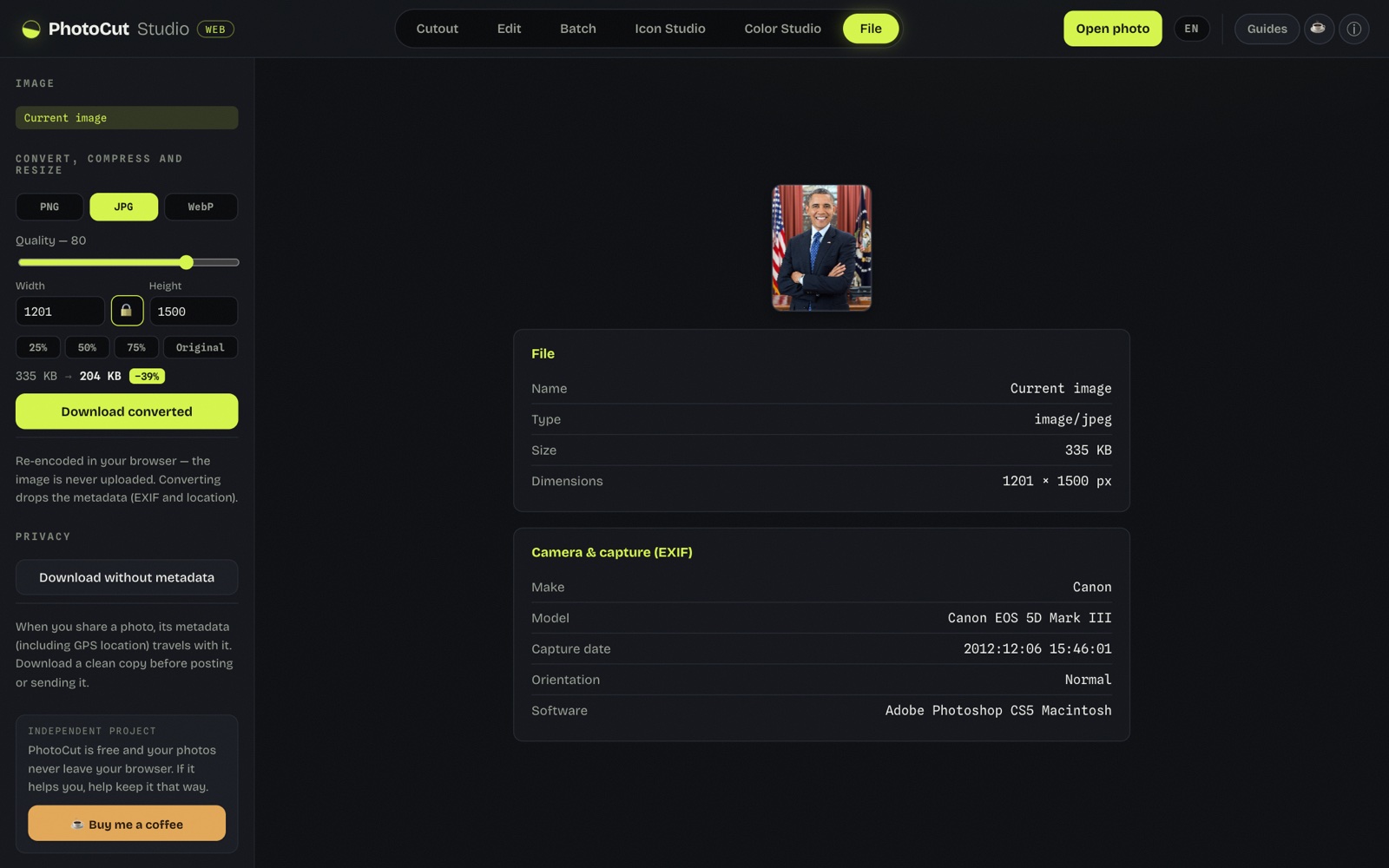
For each network there's a recommended size; in the File panel we set the width and height in pixels (or a percentage) and the image rescaled instantly, showing the final weight. With the aspect-ratio lock on, it doesn't distort.
A tip from the test: export as JPG for photos and PNG if there's text or transparency. Everything is processed in the browser, without uploading the image.
Typical size mistakes
- Uploading horizontal to a vertical format. The network crops the sides; frame vertical first.
- Avatar with the face against the edge. The circular crop eats part of the head.
- An overloaded YouTube thumbnail. At small size it's unreadable; big subject, simple background.
- Uploading too small. The network can't invent pixels: a 200 px photo looks blurry when enlarged.
Without uploading your photos anywhere
The whole cutout, background change and framing happen in your browser. Your photos aren't uploaded to any server or stored when you close the tab.
Frequently asked questions
What size is the profile photo on social networks?
Almost all use a square avatar and show it in a circle. Uploading 400×400 px or more (for example 800×800) covers Instagram, Facebook, X and TikTok; LinkedIn recommends at least 400×400.
Why does my photo look cropped in the story or post?
Because the aspect ratio doesn't match the format's. Stories and Reels are 9:16; the Instagram feed accepts 1:1 and 4:5. If you upload horizontal to a vertical format, the network crops. Frame it in the right ratio before uploading.
JPG or PNG for social media?
For photos, a good-quality JPG is standard and lighter. PNG is better with text, sharp-edged graphics or transparency. Networks recompress anyway, so uploading at good quality helps the result.
Are my photos uploaded to a server to resize them?
No. The cutout and framing are done in your browser. Your photos aren't uploaded to any server or stored once you close the tab.
Prepare my photo for social →More guides
How to make a round profile picture (avatar) free
The square-to-circle detail that applies to every network's avatar.
PNG, JPG or WebP: which to choose (and when)
Which format to export for each type of image.