PNG, JPG or WebP: which to choose (and when)
Choosing an image format sounds technical, but it comes down to two questions: do I need transparency? and is it a photo or a graphic?. With those, you solve almost every case. Let's go step by step.
What each one is, in a line
- JPG (or JPEG): the classic format for photos. It compresses with loss (drops some detail to weigh less) and doesn't keep transparency.
- PNG: made for graphics and transparency. It compresses losslessly (keeps all the detail) and does keep transparency, but it's heavy for photos.
- WebP: the modern one. It can behave like JPG (lossy) or like PNG (with transparency), and generally weighs less than both at the same quality.
The question that decides everything: do you need transparency?
This is the point that causes the most confusion. If you cut out the background of an image —a logo, a signature, a product, a subject with no background— and you want that background to stay empty (to place it on any color), you need a format with transparency: PNG or WebP. If you export it as JPG, the transparent background is filled with a color (almost always white), and that box will ruin your cutout the moment you put it on another background.
Short rule: transparent background → PNG (or WebP). Solid background or normal photo → JPG or WebP.
The second question: is it a photo or a graphic?
- Photo (people, landscapes, products): has millions of colors and soft gradients. There, JPG and WebP shine: they weigh little and the loss is barely noticeable. PNG, on the other hand, leaves it huge.
- Graphic (logos, text, screenshots, flat illustrations): has sharp edges and few colors. There, PNG (or WebP) keeps the edges clean; JPG adds a blurry "noise" around the text.
Size: who wins
For the same photo, the usual size order is PNG (heaviest) > JPG > WebP (lightest). WebP usually achieves the same look as a JPG while taking up considerably less, which makes it ideal for fast websites. The downside of WebP is compatibility with old software; of PNG for photos, the weight; of JPG, that it has no transparency and degrades if you recompress it many times.
Cheat sheet by use case
- Logo or signature with no background: PNG (or WebP). Never JPG.
- Product photo on white for a marketplace: good-quality JPG (and optionally a transparent PNG as backup).
- Photo for social media: JPG; PNG only if it has text or graphics with edges.
- Image for your own website: WebP so it loads fast.
- Sticker (WhatsApp, Telegram): the format the platform asks for (WhatsApp uses WebP), always with transparency.
- Screenshot with text: PNG, so the letters stay sharp.
A detail: recompressing degrades (in JPG)
Every time you edit and re-save a JPG, it loses a bit more quality, because it compresses again with loss. If you're going to edit an image in several steps, work in PNG or WebP during the process and leave JPG for the final export. With PNG (lossless) you can save a thousand times without degrading.
We tested it: the size savings, as a number
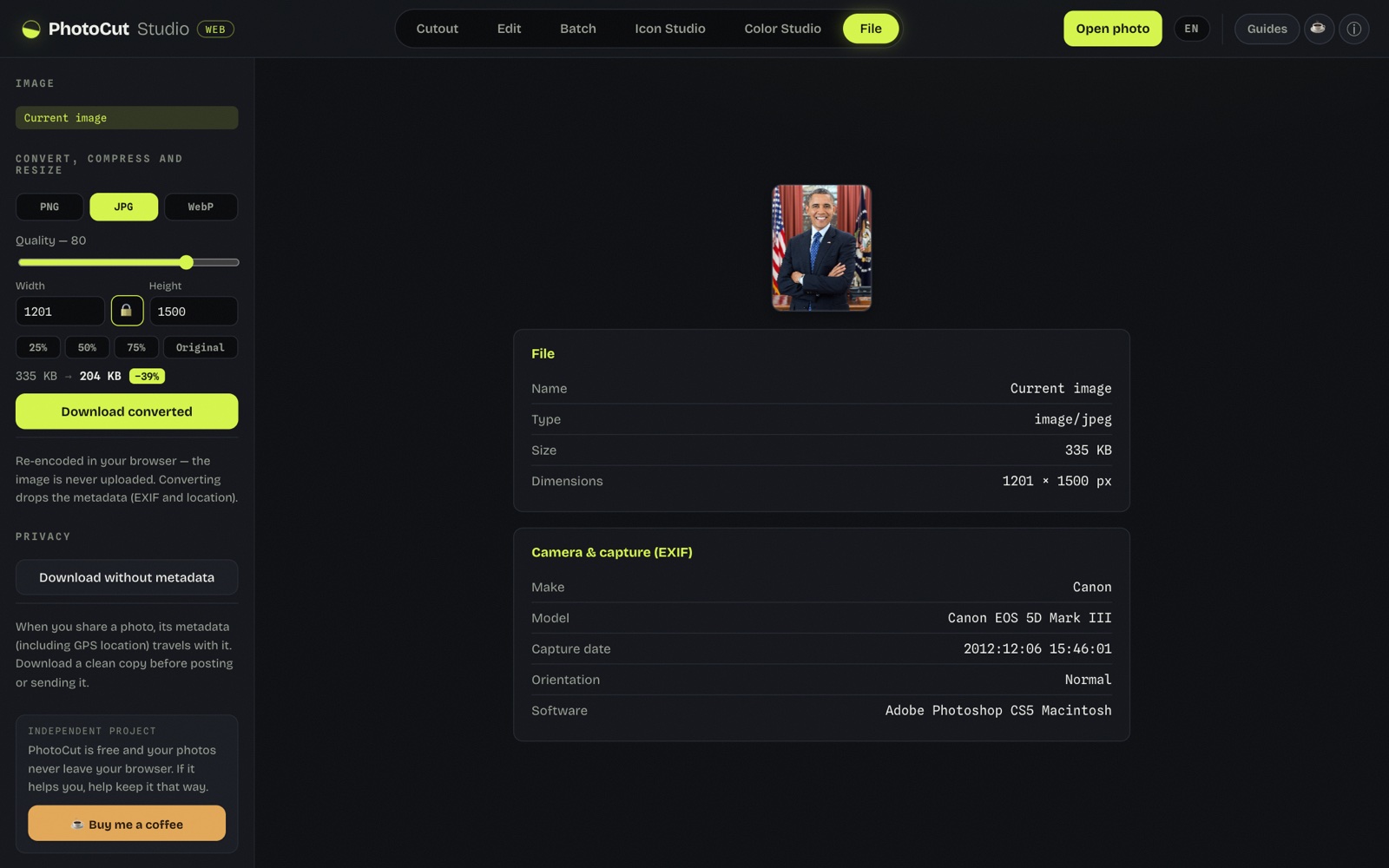
We converted the same photo between PNG, JPG and WebP with the quality control and the panel showed the savings live: from 335 KB to 204 KB (−39%) switching to JPG. The rule we confirmed: PNG for transparency or flat graphics, JPG for photos, WebP when you want the best weight/quality balance.
When converting, the metadata (EXIF and location) is discarded and nothing is uploaded to a server.
In PhotoCut you can export in all three
When downloading your cutout you can choose PNG, WebP or JPG. The only combination that makes no sense —and that the tool prevents— is JPG with a transparent background, because JPG can't keep transparency. The whole process happens in your browser: your images aren't uploaded to any server.
Frequently asked questions
Which format keeps transparency?
PNG and WebP keep transparency; JPG doesn't. If your image has the background cut out and you export as JPG, the background is filled with a color. To keep transparency, export as PNG or WebP.
Which is smaller, PNG, JPG or WebP?
For photos, JPG is much smaller than PNG, and WebP is usually even smaller than JPG while keeping the quality. WebP is the most efficient; JPG the most compatible; PNG the heaviest for photos.
Does WebP display well everywhere?
In all modern browsers and most web platforms, yes. Where it can fail is old desktop software. For a modern website, WebP is a great choice; if in doubt, JPG or PNG are safe.
What format for a product photo on a white background?
If the background is solid white, a good-quality JPG is standard and small. If you also want a transparent version to reuse the product, save a PNG too.
Export my image →More guides
How to remove the background from an image free (and without uploading it)
Cut out and export a transparent PNG or WebP — the formats that keep the background empty.
Product photos for Amazon, Etsy and Shopify: sizes and white background
Why marketplaces want JPG on white, and when to also keep a transparent PNG.