How to put a white background on a photo free (online, no Photoshop)
"Put a white background on it" is one of the most common requests: marketplaces ask for it, so do paperwork, resumes and IDs. And although it sounds like a designer's job, it's really two steps: cut out the subject from the background it already has and replace it with white. This guide shows how to do it free in the browser, with the key detail of why a white background is so demanding on edges and when white beats transparent.
Why "putting white" is more than painting the background
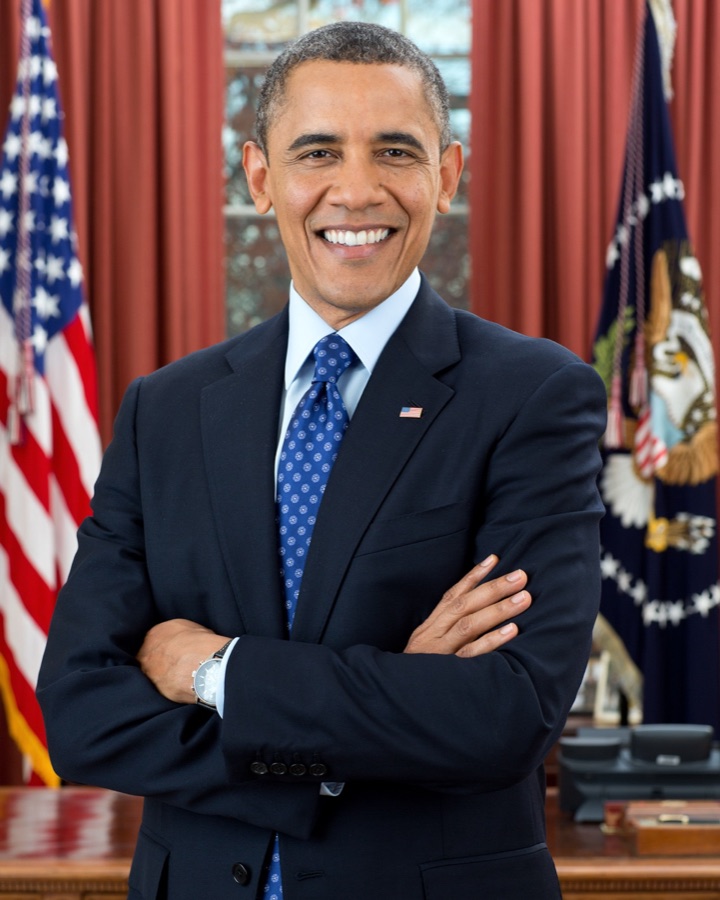
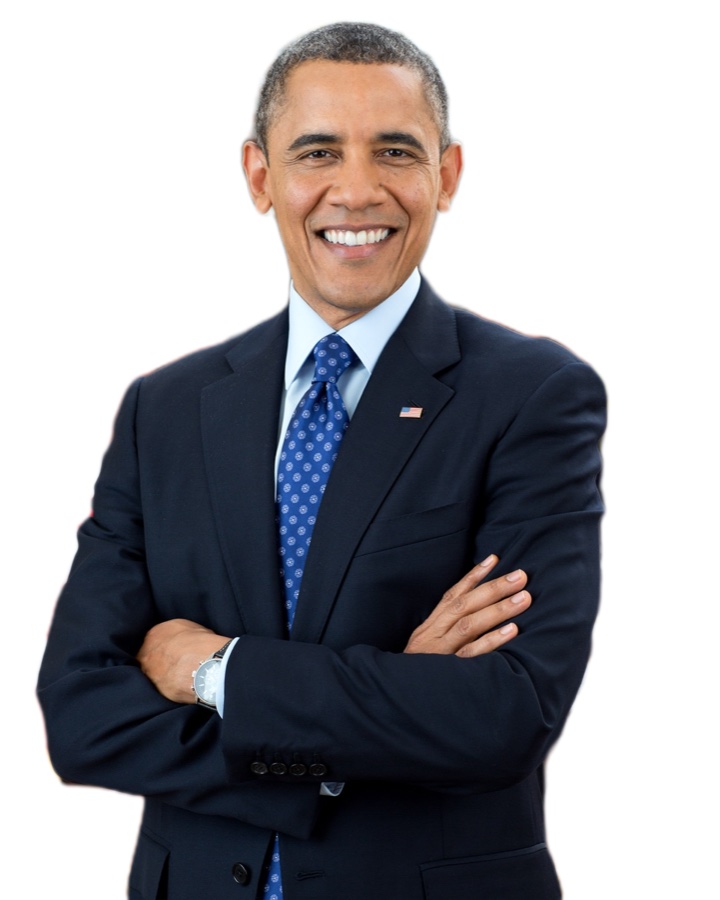
It's not about painting the whole image white, but about removing the original background and leaving the subject on white. That's why the first step —the cutout— is what matters: if the cutout is tidy, the white background looks flawless; if it's messy, the white gives it away. White is unforgiving: on a textured background leftovers don't show, but on pure white any extra pixel jumps out.
Step by step
- Open the photo in PhotoCut Studio.
- Use the AI Cutout to separate the subject from the background; touch up the edges with the brushes, especially the hair.
- In Export, choose the Color mode and set pure white (
#ffffff). - With the scale control, center the subject and leave an even margin around it.
- Download as JPG (ideal for a white background) or PNG if you also want an editable version.
Pure white (#ffffff): why it's the standard
For paperwork, resumes and marketplaces, pure white is the safe bet: it's what almost every form and template assumes, and it looks the same on any screen or printer. A broken, cream or very light gray white may look "softer" in the editor, but it reads differently depending on the monitor and can make your photo clash next to others with pure white. Save it only if you're asked.
The critical point: edges on white
- Hair. Where leftovers show most. Check it with zoom and touch up the strands with a small brush.
- Color halos. Sometimes the edge keeps a thin rim of the old background's color; on white it looks like a dirty shadow. The before/after compare catches them fast.
- Original shadows. If the photo came with a shadow under the subject, decide: either remove it with the cutout, or keep it whole and tidy. A shadow cut in half looks like a mistake.
White or transparent? How to decide
They're two different things and worth not confusing:
- White background (JPG or PNG): what marketplaces, paperwork and resumes ask for. The subject sits on solid white.
- Transparent background (PNG or WebP): the subject with no background, to reuse it over other colors or designs (a logo, a product you later place in a template).
If in doubt, export both: the JPG on white to upload, and a transparent PNG as backup for the future.
For MercadoLibre: cover photo requirements
On MercadoLibre the first photo isn't "just another photo": it's the one
shown in search results, next to your competitor's, and the platform
expects the product on a pure white background, centered,
with no logos or text on it. The workflow is the one above (cutout, white
#ffffff, scale, export); what changes are the sizes and what
to avoid.
Why the cover goes on white
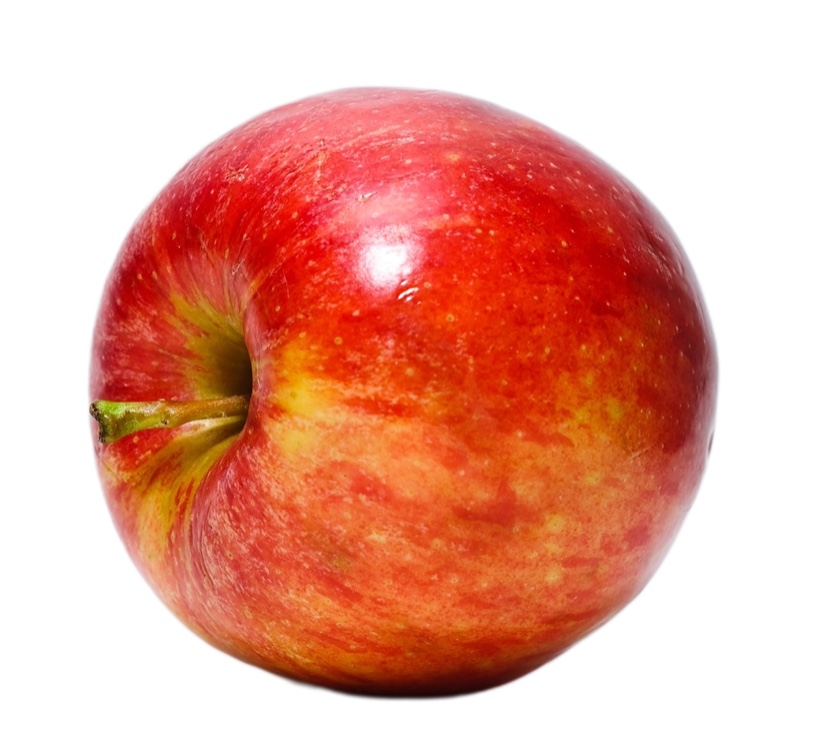
It's not an aesthetic whim: with every cover on the same background the results grid looks tidy, the product is the star because nothing distracts from it and, if you sell several items, you get a coherent visual identity for free.
Reference sizes
- Format: square (1:1), the one that fits the grid and the product viewer best.
- Ideal size: around 1200×1200 px, so the zoom looks sharp and the buyer can see the detail.
- Minimum: don't go below ~500 px per side; below that, the zoom looks blurry and reduces trust.
- Weight: a good-quality JPG is enough; you don't need a huge file if the resolution is already right.
What to avoid on the cover
- Logos, watermarks, prices or text on top. MercadoLibre wants them off the cover; keep them for the secondary photos.
- Product touching the edge. Without a margin the photo feels cramped: center it and leave some air.
- Uploading too small. A 400 px cover looks pixelated when zoomed and conveys distrust.
Several photos with the same white background
If you have to put many photos on white —a catalog, a team, a series of products—, the Batch mode applies the same criterion to all of them and downloads them together, with a uniform style.
Without uploading your photo anywhere
The whole process happens in your browser. Your photo isn't uploaded to any server or stored once you close the tab.
We tested it: on white the edge shows more
We placed the cutout on pure white and something useful jumped out: on transparent the edge fringe was barely visible, but on white it was. That's why it pays to go over the outline with the remove brush before exporting.
For a solid white background we exported as JPG (not PNG): it weighs less and you don't need transparency. The white came out even, with no shadows or halos.
Frequently asked questions
How do I put a white background without the cutout showing?
By checking the outline —especially the hair— with zoom and touching it up with the brushes before exporting. On white any leftover shows more; the before/after compare helps spot it.
Does the first MercadoLibre photo have to be on white?
Yes. MercadoLibre strongly recommends the cover show the product on a pure white background, with no logos, text or frames. The following photos can be in context or in use, but the cover defines how your listing looks in the results.
What size is best for MercadoLibre photos?
A large square image, around 1200×1200 px, so the zoom looks sharp. The recommended minimum is about 500 px per side, but the larger you upload, the better the detail shows.
Put a white background on my photo →More guides
Product photos for Amazon, Etsy and Shopify: sizes and white background
The exact sizes and background rules for each marketplace, and how to put your product on pure white.
White background
Put your subject on a pure white background for IDs, resumes and marketplace product shots.
More guides on “White background & formal photos (ID, profile)” →