WhatsApp and Telegram stickers: requirements, comparison table and how to make them free
A sticker that looks like a real sticker —and not like a rectangular photo pasted into the chat— depends on two things: cutting out the background well and meeting the exact format of the app where you'll use it. WhatsApp and Telegram ask for similar but not identical things, so here's a single guide: the cutout workflow is shared, and what changes is the export and how you upload it. The whole cutout happens in your browser, without uploading the photo to any server.
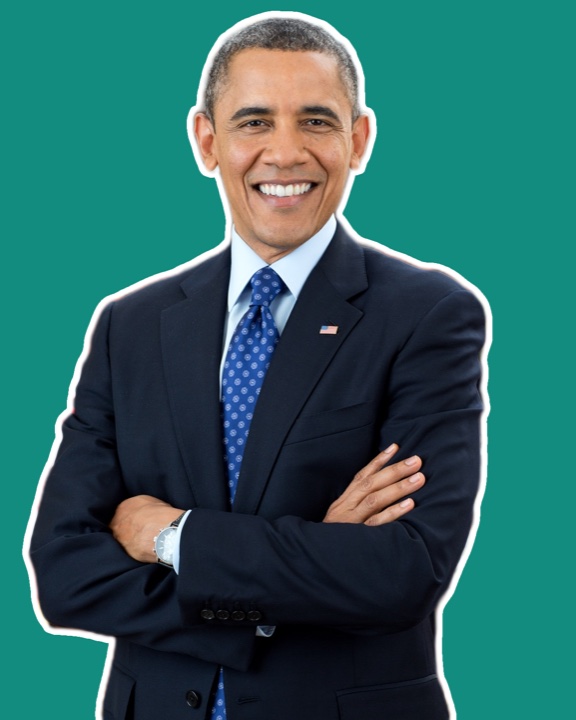
WhatsApp and Telegram, side by side
| Requirement | Telegram | |
|---|---|---|
| Size | 512 × 512 px, square | One side exactly 512 px and the other 512 px or less (512×512 is the safest) |
| Format | WebP with transparency (alpha channel) | PNG with transparency (it also accepts WebP) |
| Background | Transparent: without a cutout it looks like a pasted photo | Transparent: if you leave a background you see a box over the chat bubble |
| Outline | Optional, recommended: separates it from the chat background | Optional, recommended: especially on dark chat backgrounds |
| How it's uploaded | A third-party app builds the pack and registers it in WhatsApp | The official @Stickers bot, one sticker at a time with its emoji |
The shared workflow: from photo to sticker
- Open your photo in PhotoCut Studio (drag it in or paste with
Ctrl/Cmd+V). - Remove the background with the AI Cutout and refine the edges with the brushes if needed.
- Turn on the outline (optional but recommended) for the classic cut-out sticker look.
- Frame the subject with an even margin: it shouldn't touch the edges of the frame.
- Export for your destination, as explained next.
For WhatsApp: 512×512 WebP under 100 KB
In the Sticker/Icon section choose the WhatsApp destination: it exports WebP at 512×512 px, with compression tuned to stay under 100 KB. WebP compresses better than PNG while keeping transparency, which is why meeting the weight limit is much easier than with a PNG of the same size. Besides the sticker, the pack asks for:
- Tray (cover) icon: 96 × 96 px, WebP, under 50 KB.
- Count: minimum 3 and maximum 30 stickers per pack.
- A separate app: WhatsApp doesn't let you add a loose sticker from the gallery; you need a pack app that registers it. Download the
.webpand use it there.
If the file doesn't meet these specs, pack apps reject it or resize it badly, leaving blurry or cropped edges.
For Telegram: 512 px transparent PNG and the @Stickers bot
In Export choose Transparent mode, frame it so the longest side measures 512 px and download as PNG (JPG doesn't work: it fills the background). To upload it, Telegram doesn't use third-party apps but its own bot:
- Search for and open the chat with @Stickers.
- Use the command to create a new pack and name it.
- Send your PNG with transparency and assign it an emoji.
- Repeat for each sticker; when you finish, the bot gives you a link to use and share the pack.
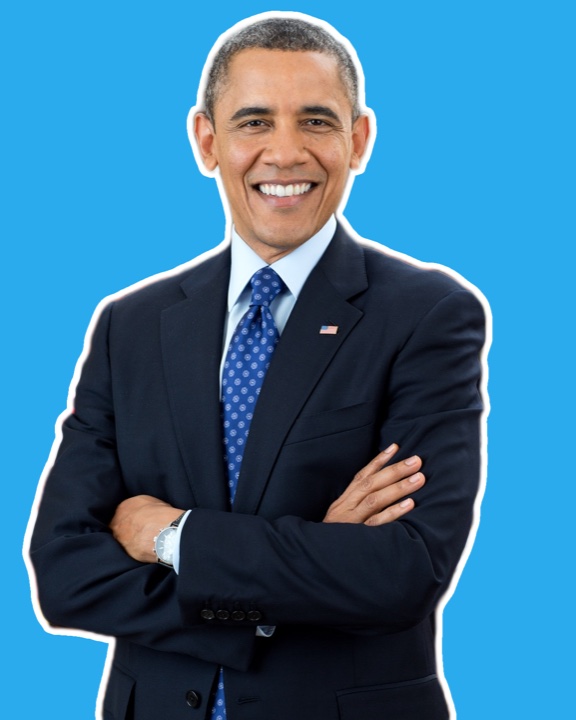
Why the outline makes the difference
A sticker with no border at all can "disappear" if the chat background is a similar color to the cut-out subject. A thin white (or colored) outline around the silhouette visually separates the sticker from the chat background, gives it a more polished finish and hides small imperfections left on the edge after the cutout. If your sticker looks "flat" on the bubble, try giving it an outline or a small margin.
Common mistakes when making stickers
- Exporting the whole photo rectangle. Without removing the background it looks like a pasted photo, not a sticker: the cutout isn't optional.
- Going over the weight on WhatsApp. A badly compressed WebP can exceed 100 KB and the sticker app rejects it without saying why.
- Using PNG for WhatsApp. A PNG of the same size weighs quite a bit more than an equivalent WebP and makes the limit harder to meet; PNG is for Telegram.
- Subject touching the frame edge. Without a margin it looks cramped and the outline gets cut at the canvas edge.
- Tiny text. Stickers are shown in the chat at a reduced size; fine details that read well in the large preview can get lost in real use.
From a single sticker to a full pack
WhatsApp requires at least three stickers per pack, so it pays to prepare several variants at once: different expressions of a pet, different poses or different texts over the same cut-out base. Repeat the same cutout and export flow for each, with the same outline style, so the pack looks coherent. On Telegram the bot builds the pack as you send the PNGs. And since the cutout is already done, you can export the same subject in both versions: WebP for WhatsApp and PNG for Telegram.
Frequently asked questions
Why does WhatsApp ask for WebP and not PNG for stickers?
WebP compresses better than PNG while keeping transparency, so a sticker weighs much less at similar quality. WhatsApp caps each sticker at 100 KB, and WebP makes that limit much easier to meet without losing sharpness.
Do I need a separate app to upload the sticker to WhatsApp?
Yes. WhatsApp doesn't let you add a loose sticker from the gallery: you need a third-party app that builds the pack (minimum 3 stickers) and registers it. PhotoCut Studio prepares the file in the exact format those apps ask for.
Does the same cutout work for WhatsApp and Telegram?
Yes. The concept is the same (cut-out subject, transparent, 512 px); what changes is the export format (WebP for WhatsApp, PNG for Telegram) and how you upload it (pack app or the @Stickers bot).
Can I use a photo with a background to make a sticker?
You can, but it looks much more like a sticker (and not a pasted rectangular photo) if you first remove the background and leave only the cut-out subject on transparency.
Make my sticker →We tested it: the white outline makes the sticker
We cut out the person and turned on Sticker (outline): that white border is the classic sticker look and, above all, helps the figure stand out from the chat background, which can be light or dark. We raised the outline thickness until it looked even and checked that the exported PNG keeps the transparency around the figure.
More guides
How to remove the background from an image free (and without uploading it)
The three methods and when to use each, how to do it free with no watermark, and how to remove a background on your phone.
How to make a round profile picture (avatar) free
Why the photo goes in square and not "round", and how to export a 512 px circular avatar with any background.
How to change the background of a photo free (color or another image)
Cut out the subject once and place it on a solid color or another photo, with opacity control — no Photoshop.