LinkedIn profile photo: size and a professional background, free
The LinkedIn profile photo is, for many people, the first professional impression they make online — a recruiter sees it before reading a single line of your experience. You don't need a photo shoot: a decent front-facing photo and a tidy background are enough for a polished image. This guide covers the right size, how to get a professional background from a casual photo, and the details of the circular crop that almost no one takes into account.
The right size
- Format: square (1:1). LinkedIn always works with a square photo.
- Recommended size: minimum 400×400 px; 800×800 px is a safe bet that looks sharp everywhere.
- Maximum size: up to 8 MB, so you won't fall short exporting in good quality.
- File format: JPG or PNG. JPG is perfect if the background is solid; PNG for maximum sharpness.
The circular-crop detail
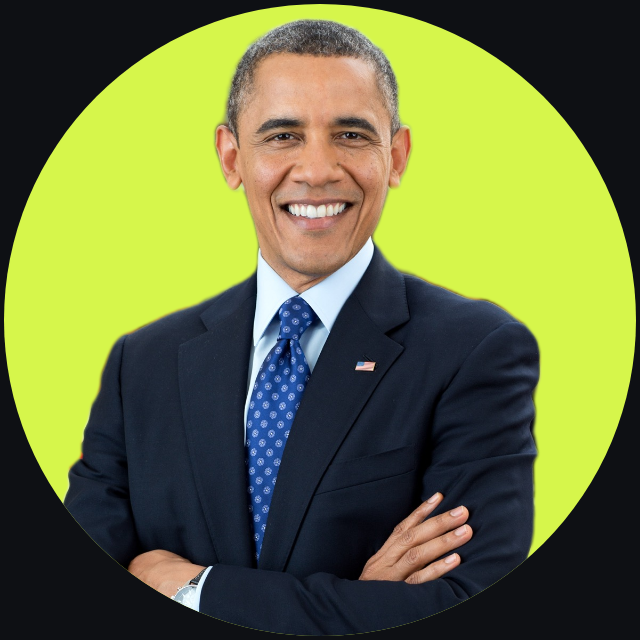
This is the point that ruins many profile photos: you upload a square image, but LinkedIn shows it cropped into a circle. That means the four corners of the square are lost. If you push the face against an edge, part of the face or hair falls outside the circle. The practical rule: leave air around the head, with the face slightly above center, so the circle frames you nicely from the shoulders to the crown.
Step by step
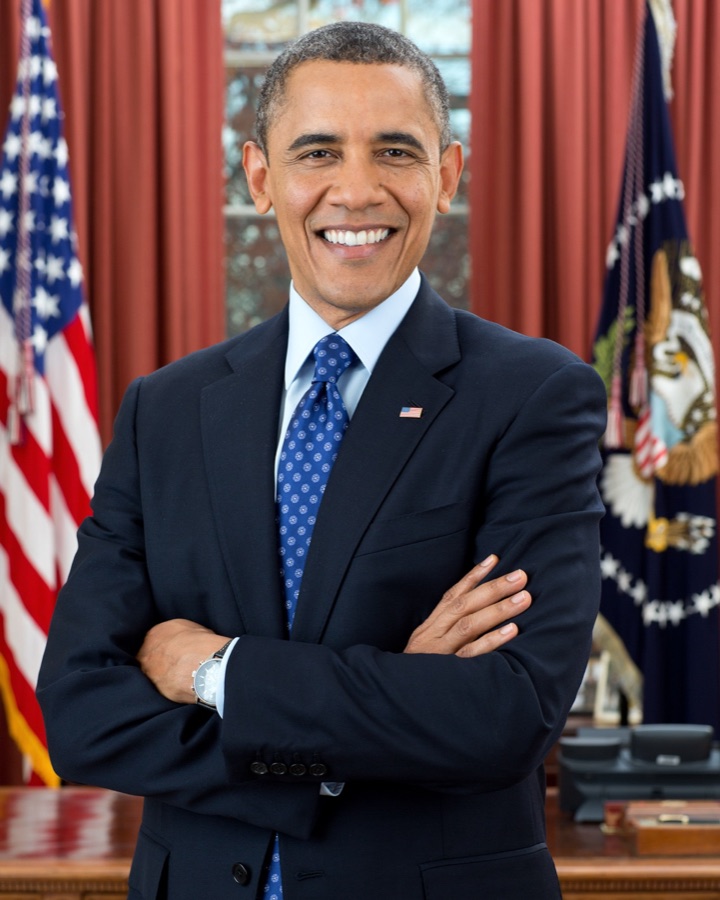
- Choose a front-facing photo, from the shoulders up, with good light and a friendly expression.
- In PhotoCut Studio, use the AI Cutout to separate yourself from the original background; touch up the hair with the brushes.
- Add a professional background: a flat neutral color (Color mode) or a sober image (Image mode), lowering the opacity if needed.
- Frame it square with the face slightly above center and air above the head.
- Export square and large (for example 800×800) as JPG or PNG.
What background says "professional"?
Pure white works, but it can end up too "ID photo". For LinkedIn these usually look better:
- Light gray or medium gray: neutral, modern, flatters almost any outfit.
- Muted blue or a soft corporate tone: conveys seriousness without being boring; useful if your industry has an associated color.
- A real, blurred and sober background: with Image mode you can add an office or neutral-wall background and lower its opacity so it doesn't compete with your face.
The rule is simple: the background is there to make you stand out, not to draw attention by itself.
Mistakes that cost points
- A cropped group photo. Someone else's arm or a forced crop shows. Use a photo where you're alone.
- Face against the edge. The circular crop will eat part of the head.
- A chaotic original background poorly cut out. Leftovers of the old background around the hair look careless. Check the outline with zoom.
- A very old or very informal photo. Consistency with how you look today matters more than aesthetics.
- Uploading small. A 200 px photo looks blurry when the profile is enlarged.
Your photo doesn't leave your device
The cutout and background change happen entirely in your browser. Your photo isn't uploaded to any server or stored once you close the tab: you upload it, already finished, straight to LinkedIn.
We tested it: LinkedIn crops you into a circle
Even if you upload a square photo, LinkedIn shows it inside a circle. So, after the cutout, we checked that the face stays centered and not pushed to one side: what's shown is the circle, not the full square.
Cutting out the background and placing it on a sober color (or white) gives a more professional photo, consistent with your personal brand. All local, without uploading the image.
Frequently asked questions
What size should a LinkedIn profile photo be?
LinkedIn accepts photos up to 8 MB and recommends a square image of at least 400×400 px. Exporting around 800×800 px is a safe bet: it stays within the size limit and looks sharp in the small feed circle and the enlarged profile.
Does the photo show round or square on LinkedIn?
LinkedIn crops the photo into a circle to display it, but you upload a square image. That's why you should leave air around the head: the square's corners get cropped and you don't want to lose part of the face.
White or color background for LinkedIn?
A flat, neutral background (light gray, muted blue, a soft corporate tone) usually looks more professional and current than pure white. The key is that the background doesn't distract or compete with your face.
Is my photo uploaded to a server to edit it?
No. The cutout and background change happen in your browser. Your photo isn't uploaded to any server or stored once you close the tab: you upload it, already finished, straight to LinkedIn.
Make my LinkedIn photo →More guides
How to make a round profile picture (avatar) free
Why the photo goes in square and not "round", and how to export a 512 px circular avatar.
How to change the background of a photo free (color or another image)
Put yourself on a professional color or a sober image, with opacity control.
More guides on “White background & formal photos (ID, profile)” →